Watch live football long enough and you will notice the same argument every season: one person swears the stream is sharp, another says it is a blurry mess, and both are on the same match at the same moment. The difference is almost never the source. It is the settings sitting between the feed and your screen. This piece breaks down what resolution, frame rate and bitrate actually do, roughly how much data each tier eats, and what CAKHIATV viewers do when the connection is genuinely poor.
Understanding quality before you watch live football
Three numbers decide how a stream looks, and only one of them gets talked about. Knowing all 3 makes the quality menu far less of a guessing game.

A quality menu used to watch live football in different resolutions
What 480p, 720p and 1080p really mean
Resolution is just how many pixels build the picture. On a phone held at arm’s length, 480p and 720p are harder to tell apart than most people admit, because the screen is small and your eyes are doing half the work. Put the same 480p feed on a 50-inch television and it falls apart immediately, especially on wide camera angles where players become smudges. So the honest answer is that the right resolution depends entirely on the screen, not on which number sounds better. Plenty of fans xem bóng đá trực tiếp at 720p all season and never feel short-changed.
Why frame rate matters more in football than in most content
Football moves fast and the camera pans constantly. At 25 frames per second a sweeping cross-field ball can look slightly juddery, while 50 frames per second keeps it smooth. This is why a match can feel worse than a film at the same resolution. If your player offers a higher frame rate option, it is often a bigger visual upgrade than jumping up a resolution tier. Anyone who wants to watch live football and actually track the ball benefits from prioritising smoothness over pixel count.
Bitrate, the number nobody checks
Bitrate is how much data is spent per second describing the picture. A stream can claim 1080p and still look poor if the bitrate is too low, because the encoder throws away detail to fit the budget. That is where blocky patches in the crowd and mushy grass come from. When 2 servers offer the same resolution but one looks noticeably better, bitrate is usually the reason.
How much data you use when you watch live football



Data anxiety is real, especially on a capped plan, so it helps to have a rough sense of what a full match costs at each tier.

A phone showing data used to watch live football over mobile
- Low tier: comfortable on a limited plan and fine for a phone screen when you mainly want to follow the score
- Standard tier: the everyday balance for 4G, sharp enough for a phone or tablet without draining an allowance
- High tier: best kept for Wi-Fi and home broadband, where the extra detail is worth the extra data
- Audio only: a genuine fallback on a bad signal, since commentary keeps you connected to the match when video cannot
- Checking usage: your phone settings show data per app, so 1 look after a match tells you exactly what a tier costs you
The habit worth building is simple. Decide before kick-off whether you are on Wi-Fi or mobile, then set the tier to match rather than letting the player decide. Fans who watch live football several times a week notice the difference on their bill within a month. CakhiaTV keeps the quality selector visible in the player rather than buried in a settings menu, which makes that 1-second decision easy to remember.
It is also worth saying that higher is not automatically better. If your connection cannot sustain the top tier, forcing it produces a stream that looks great for 8 seconds and then stalls, which is a far worse way to watch live football than a steady medium picture that never interrupts you.
Keeping a steady picture on a slow connection
A weak signal does not have to mean an unwatchable match, as long as you stop the player from constantly trying to do more than your line can handle.
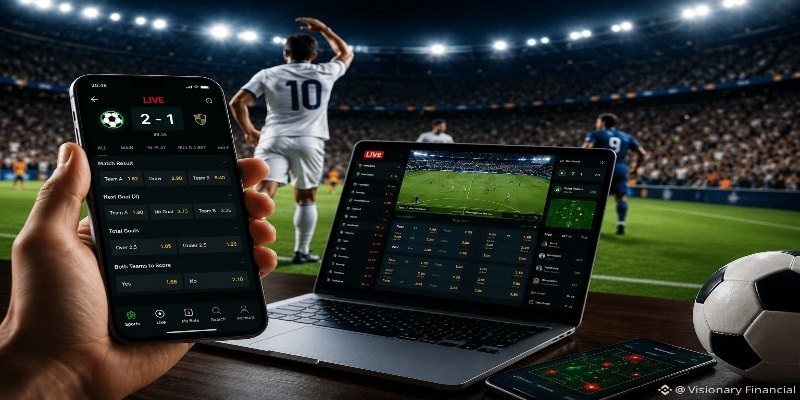
A viewer able to watch live football smoothly on a weak signal
Lock the quality instead of leaving it on auto
Auto quality is designed for stable connections. On a shaky one it behaves like a driver who cannot decide which lane to be in, climbing and dropping every few seconds. Each of those switches costs a small pause. Setting the tier manually and leaving it alone removes the problem entirely, and it is the single most effective change for anyone trying to watch live football on patchy mobile data.
Clear out background bandwidth
Cloud backups, app updates and other devices on the same router all compete for the same pipe. Pausing automatic updates and asking the household to hold off on large downloads for 90 minutes sounds fussy, but it is often the difference between a smooth half and a stuttering one. It costs nothing and takes about 20 seconds to arrange.
Change server rather than refreshing
Refreshing is the instinct, but it usually returns you to the same overloaded server. Switching to a different one moves you to different capacity altogether. Learning that difference early saves a lot of frustration, and regular viewers who watch live football at peak times treat the server list as the first thing they touch, not the last.
Conclusion
Watch live football with the right settings and the whole experience changes, without needing a faster connection or a newer phone. Match the resolution to your screen, favour smoothness over pixel count, decide your tier before kick-off rather than during, and reach for the server list before the refresh button. CakhiaTV keeps those controls where you can find them quickly, so the adjustment takes seconds and the rest of the match belongs to the football.